Live Stream
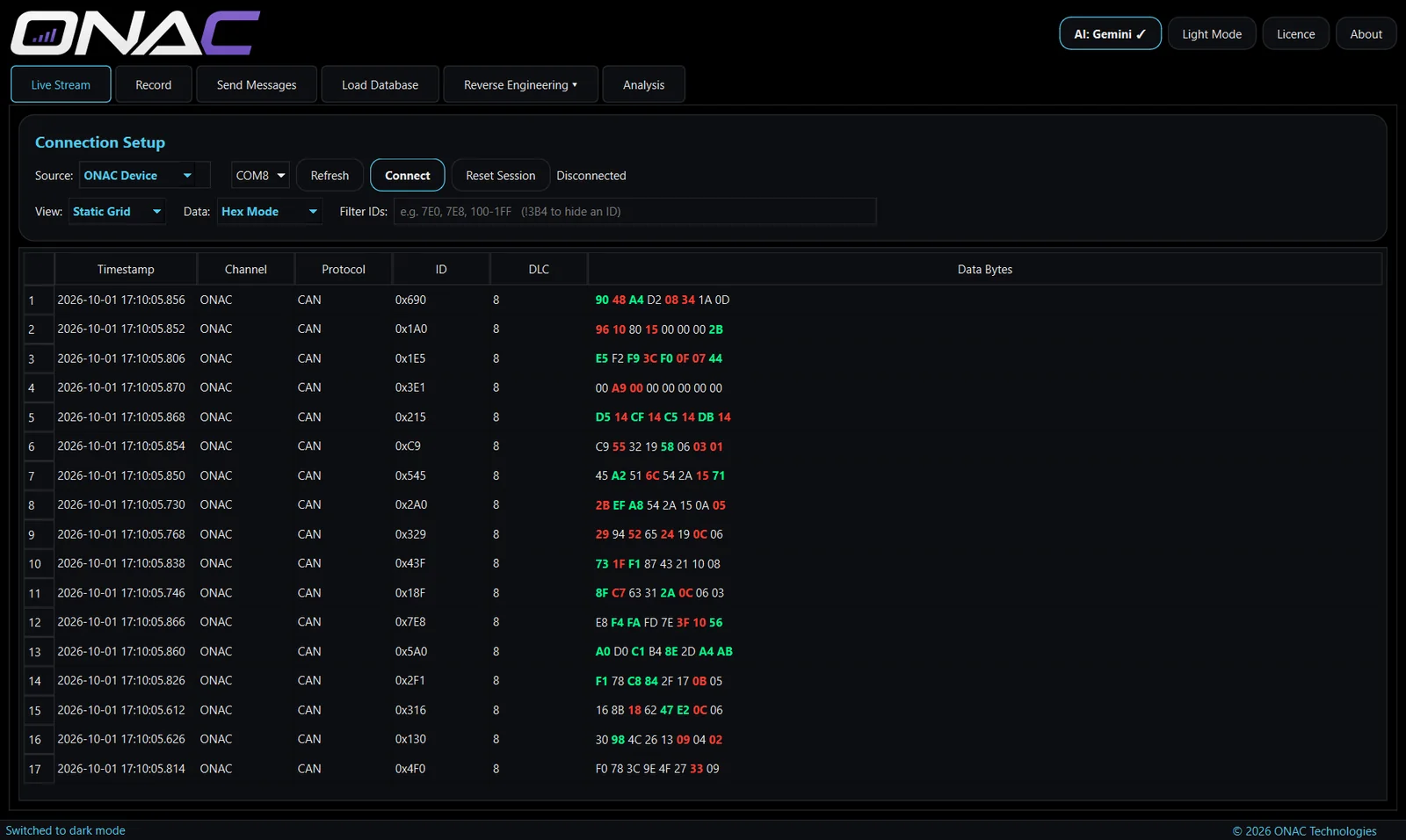
The starting point for any job: connect to the vehicle and see every frame on the network as it arrives.
- Choose your hardware. ONAC device, PicoScope or Mongoose ISO3. With a PicoScope, each channel can be set to CAN (500k, 250k or 1M), LIN (19.2k or 9.6k) or SENT (3.0 or 1.5 µs tick), with its own voltage range.
- FlexRay isn't supported live yet. FlexRay traffic recorded and serial-decoded in PicoScope's own software can be loaded and analysed in Network Studio.
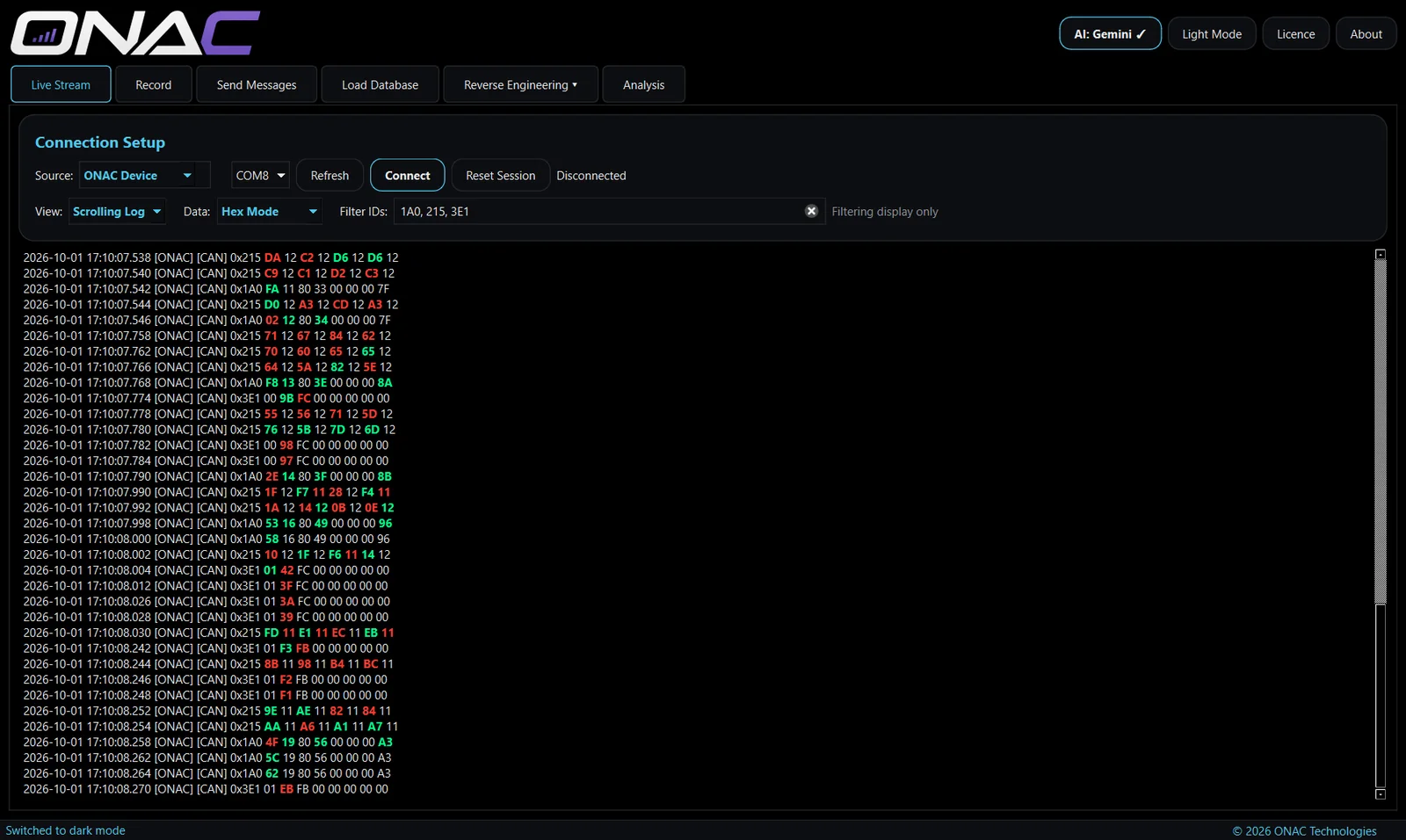
- Two views. Scrolling Log lists every frame in time order — ideal for seeing sequences and event-driven messages. Static Grid keeps one row per ID and updates it in place, so the bytes that are changing jump out.
- Hex, decimal or bit view of the data bytes. Bit mode is the quickest way to spot a single switch or flag toggling.
- ID filter. Type a list of IDs to watch only the messages you care about.
- Separate or combined channels when more than one network is connected.
Record
Capture a session to analyse later, with everything you need to know what the vehicle was doing at the time.
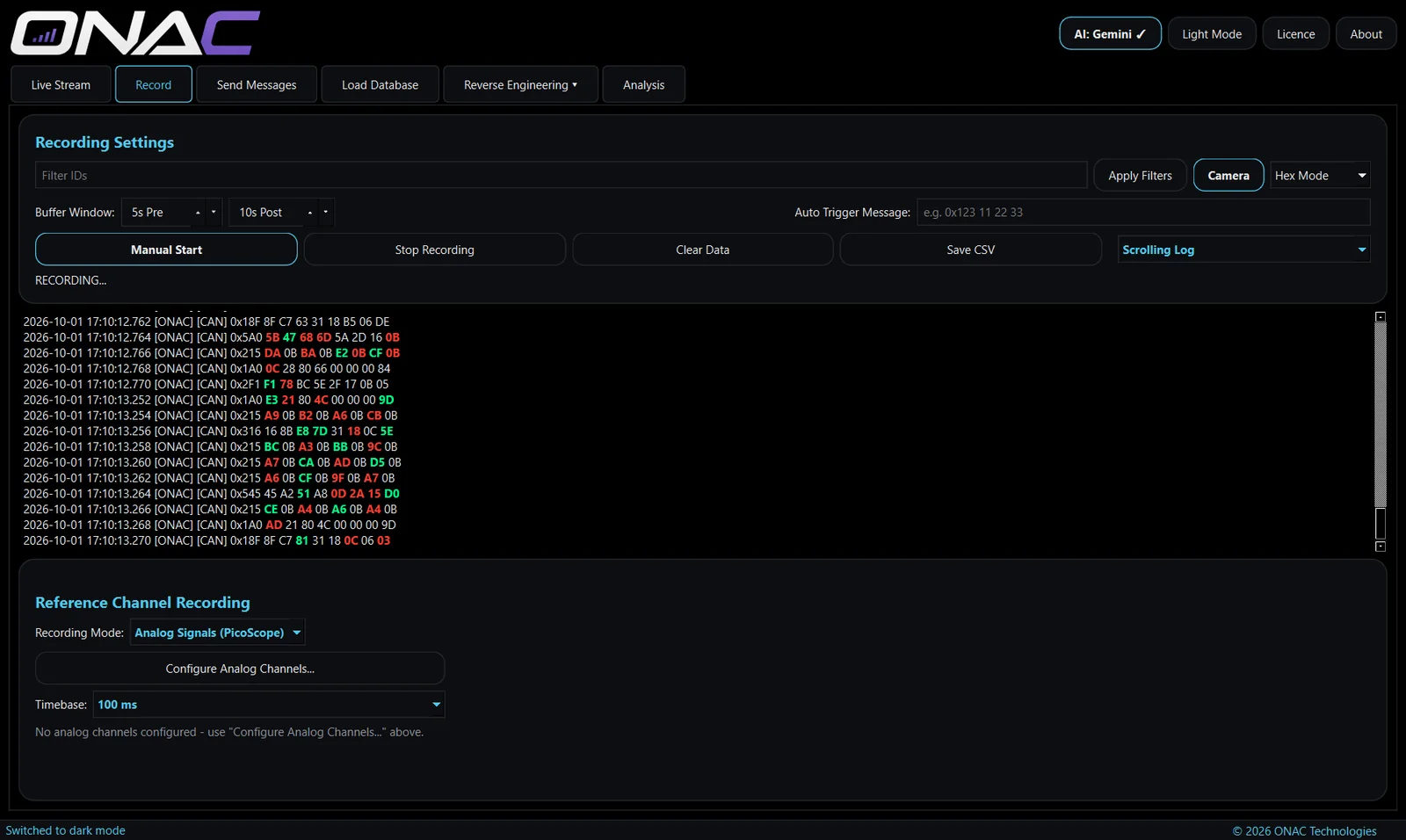
- Start manually or on a trigger. Set a trigger message and recording starts automatically when it appears — no need to be at the laptop when the event happens.
- Pre- and post-trigger buffers keep the seconds before and after the event, so you capture the build-up as well as the moment itself.
- Recording filters to keep only the IDs that matter and keep files small.
- Camera recording alongside the network data, on the same timeline.
- Reference channels. Record PicoScope analog inputs (voltage range and timebase selectable), or use manual sliders and toggles to mark what you were doing — "brake on", "throttle 50%" — while recording.
- Save as CSV, raw or decoded, ready for Analysis or any other tool.
Load Database
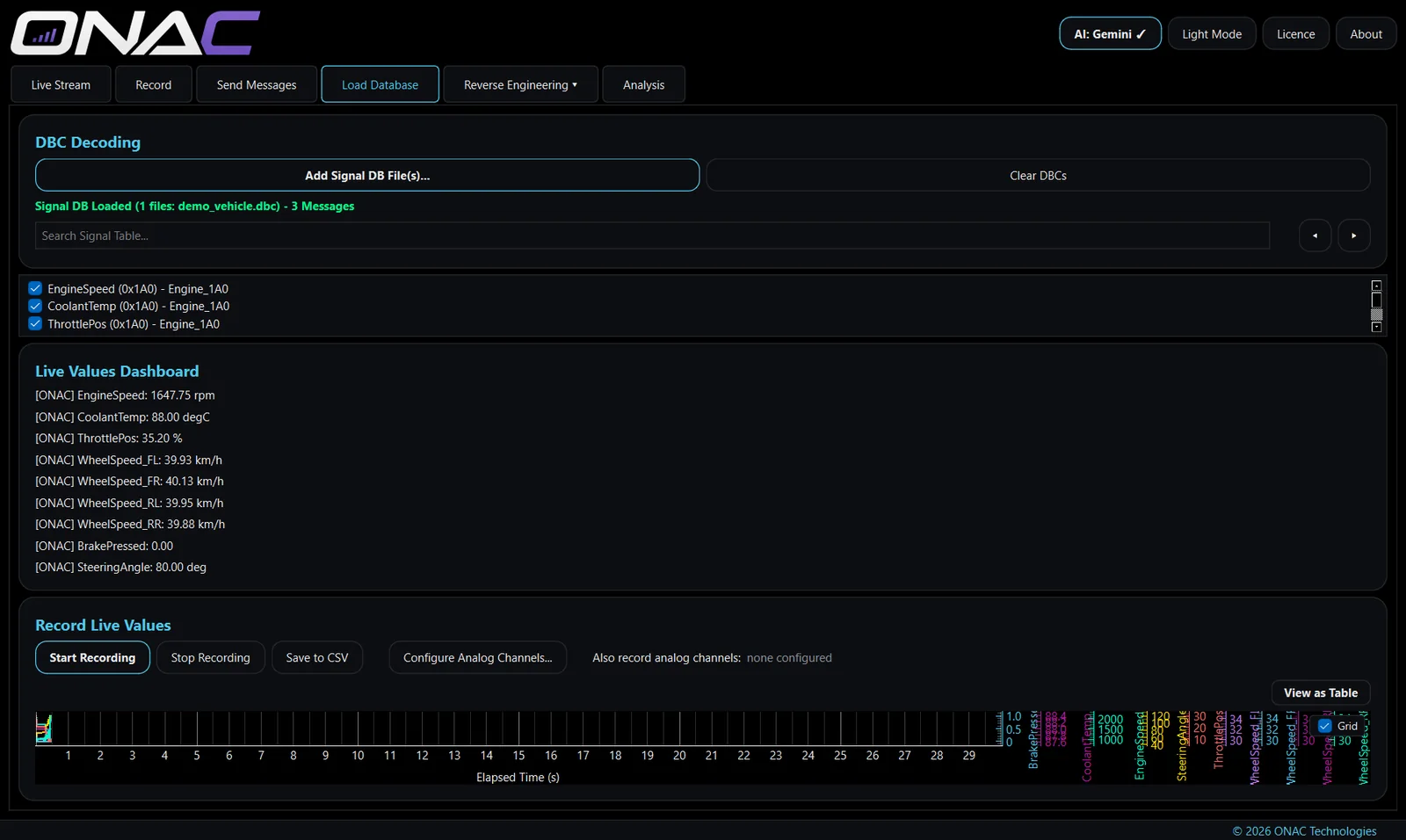
When you know what's on the network, load the database and see real engineering values instead of raw bytes.
- DBC, LDF and FIBEX. DBC for CAN (and SENT signal definitions), LDF for LIN, FIBEX (
.xml) for FlexRay logs. Load several at once — they all decode together. - Live values dashboard. Tick the signals you want and watch them update as named, scaled values with units — engine speed in rpm, wheel speeds in km/h, steering angle in degrees.
- Record live values to a decoded CSV, including any analog reference channels.
New to databases? Our guide to DBC files and signal decoding explains how a raw frame becomes a value.
Reverse Engineering
When there's no database for the vehicle, this is where you build one. There are three approaches, from fully manual to fully automatic, and they all end in the same place: a database file you can reuse.
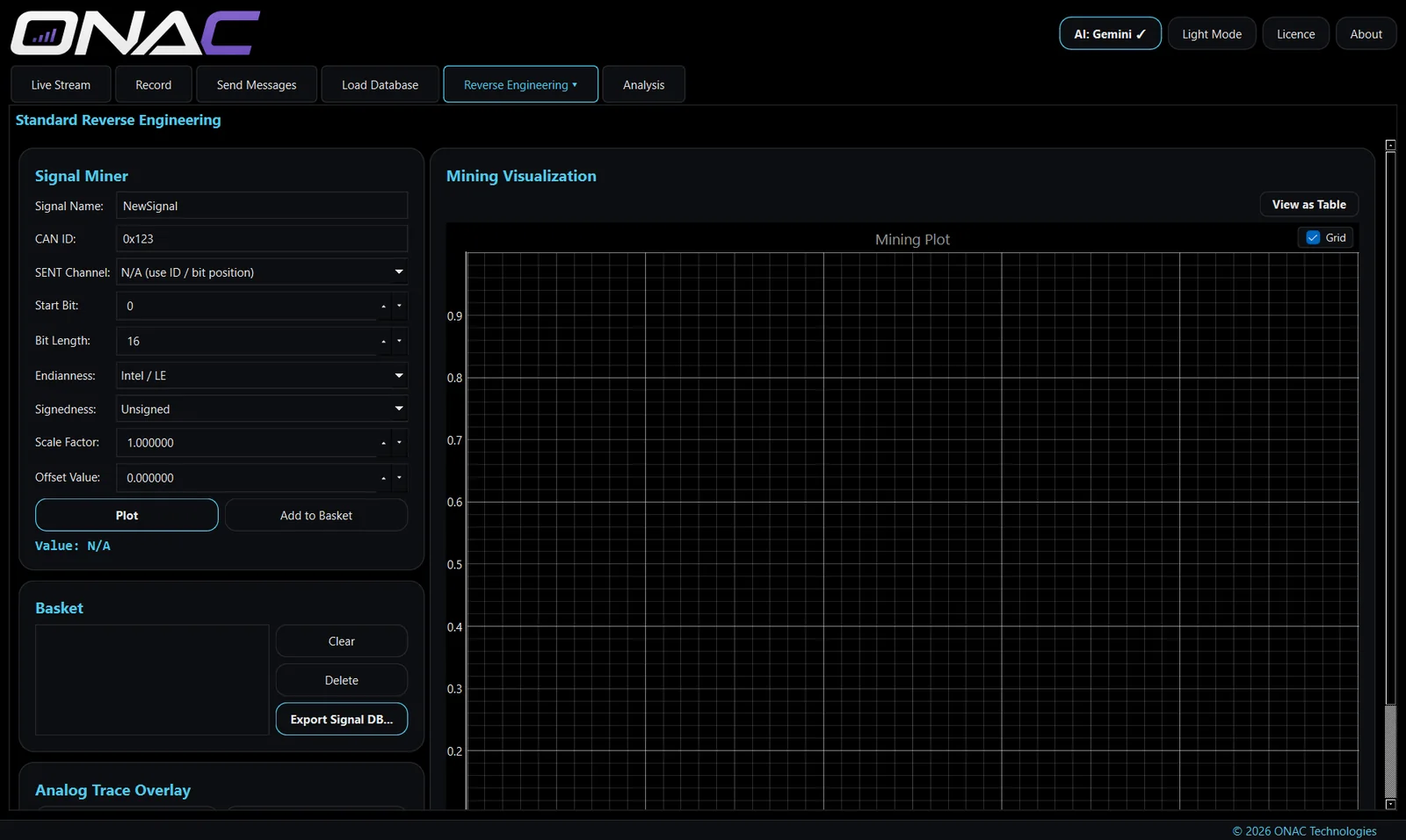
Standard — signal miner
- Pick a message and inspect any run of bits as a value: start bit, length, Intel or Motorola byte order, signed or unsigned, scale and offset.
- Plot candidate signals over time and overlay an analog trace to confirm a match.
- Collect confirmed signals in a basket and export them as DBC, LDF or FIBEX.
Live Reverse Engineering
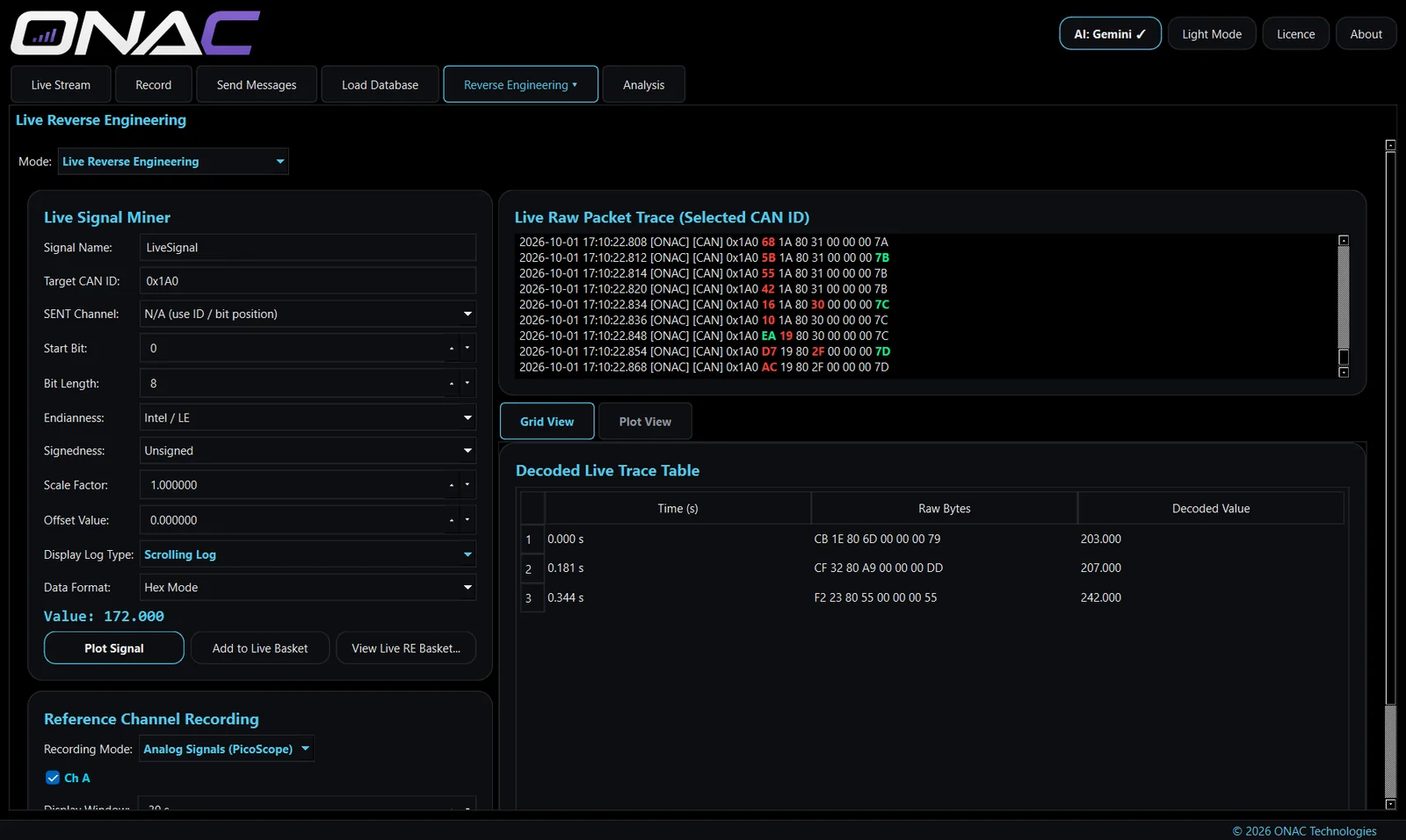
Watch a single ID live while you operate the vehicle. Each bit and byte is shown as it changes, so you can press a pedal or flick a switch and see exactly which bits respond. Analog reference channels from a PicoScope, or manual sliders, can be shown alongside for comparison.
Guided Test
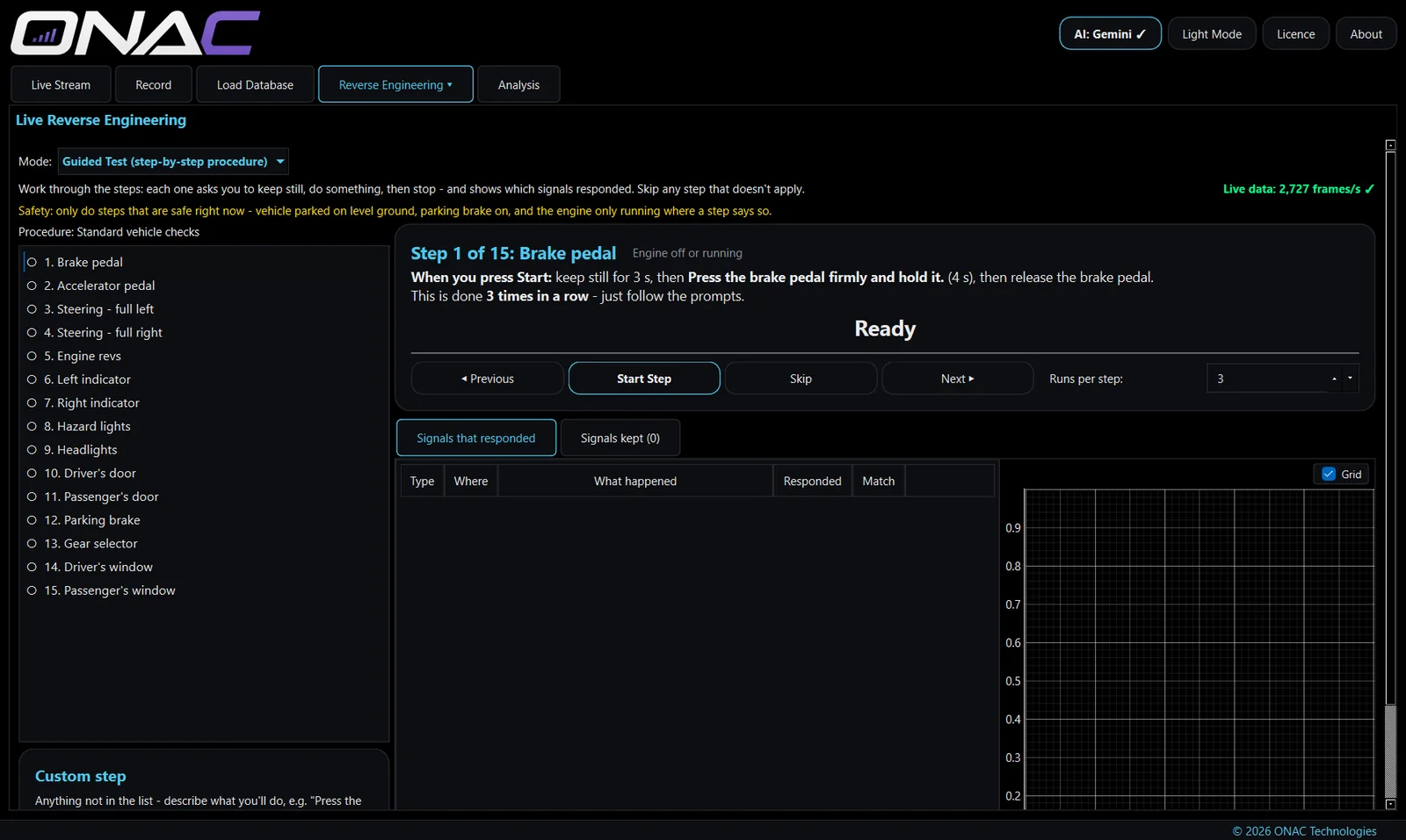
A step-by-step procedure that does the detective work for you. For each step the app asks you to keep still, do the action, then release — and lists the signals that responded, in plain English, with a graph.
- 15 standard steps: brake and accelerator pedals, steering full left and right, engine revs, indicators, hazards, headlights, both front doors, parking brake, gear selector, and both front windows. Every step is done with the vehicle stationary.
- Pro only: a 16th step for vehicle and wheel speed, which involves driving the vehicle, is included only in Network Studio Pro for approved users.
- Skip, repeat or revisit any step, and add your own custom steps.
- Run each step more than once to make the results more reliable.
- Scale signals from real readings (e.g. "the rev counter showed 3000 rpm"), choose the ones to keep, and export a .dbc.
AI Reverse Engineering
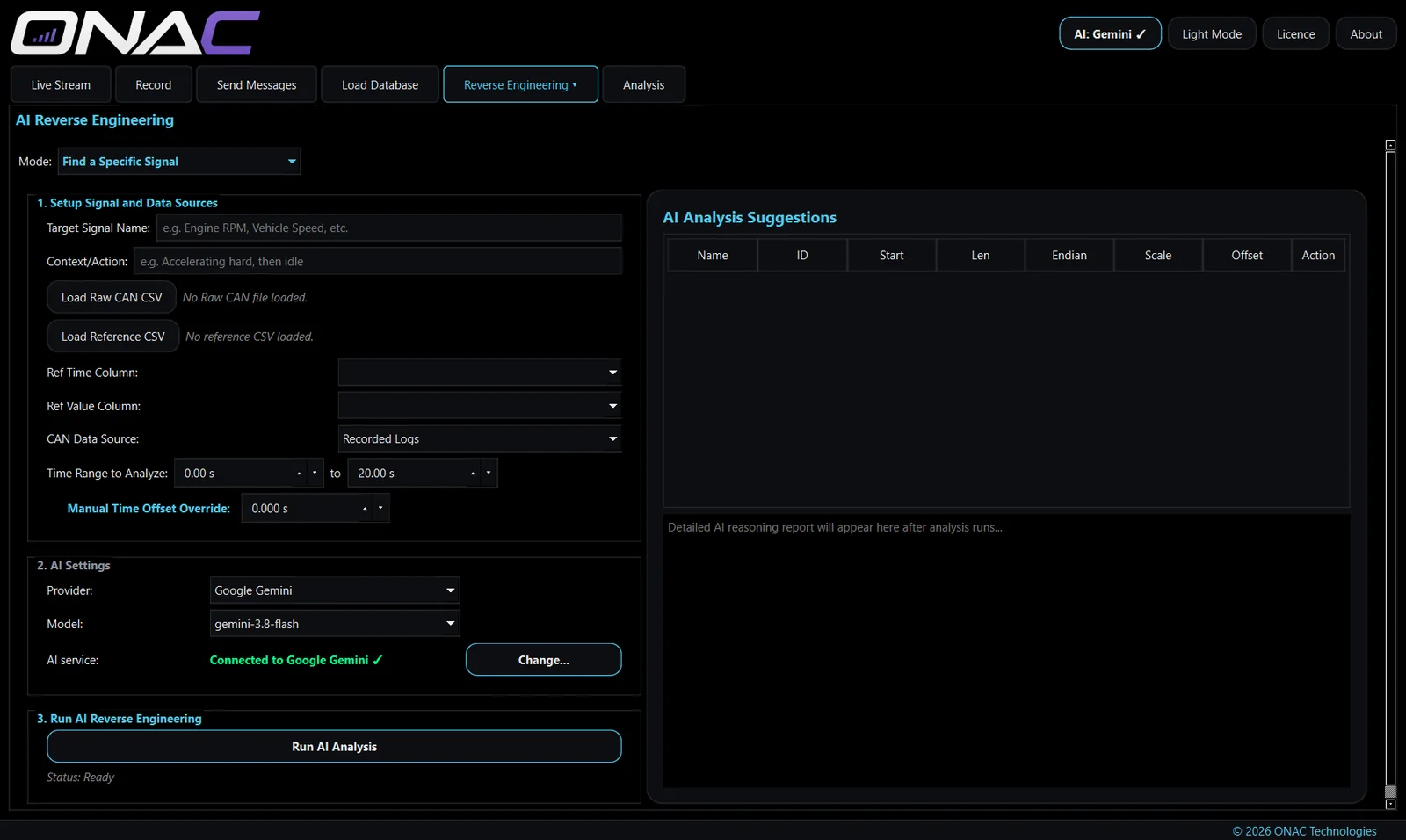
Find a Specific Signal. Say what you're looking for and what the vehicle was doing — "engine speed, accelerating hard then idle" — and optionally load a reference CSV of known values (from an OBD reader, for example) and a time range. The app searches your recorded or loaded log for the frames and bits that best match. Choose the built-in Local Auto-Miner (no internet, nothing leaves your PC) or use Google Gemini or Anthropic Claude for a second opinion.
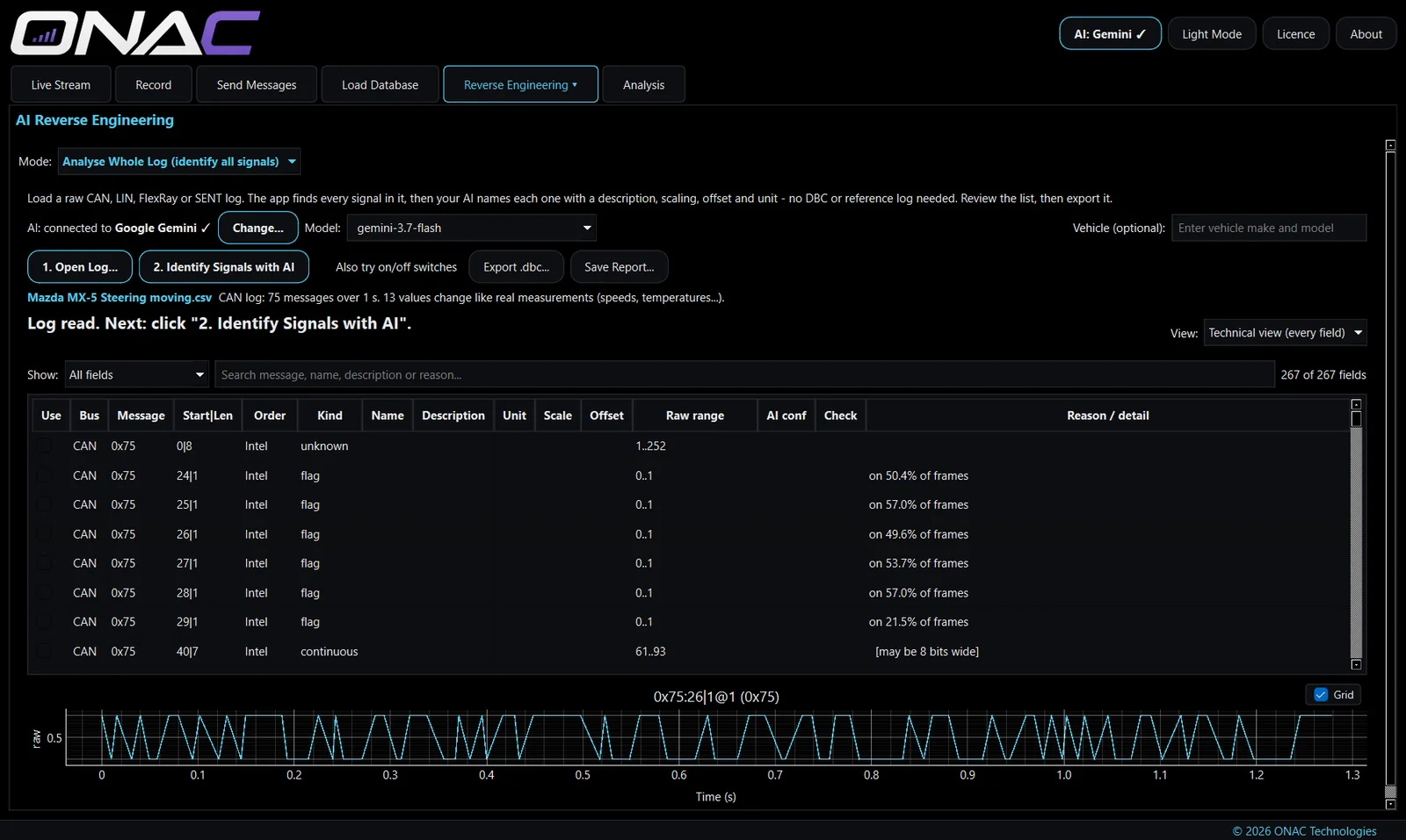
Analyse Whole Log. Point it at a CAN, LIN or SENT log, or a FlexRay log decoded in PicoScope, and it works through every message to identify the signals it can — counters, checksums, speeds, temperatures, switches — then produces a report and an exportable .dbc. Switch between a plain-English summary and a technical view with graphs of each signal.
Analysis
Everything you need once the session is over.
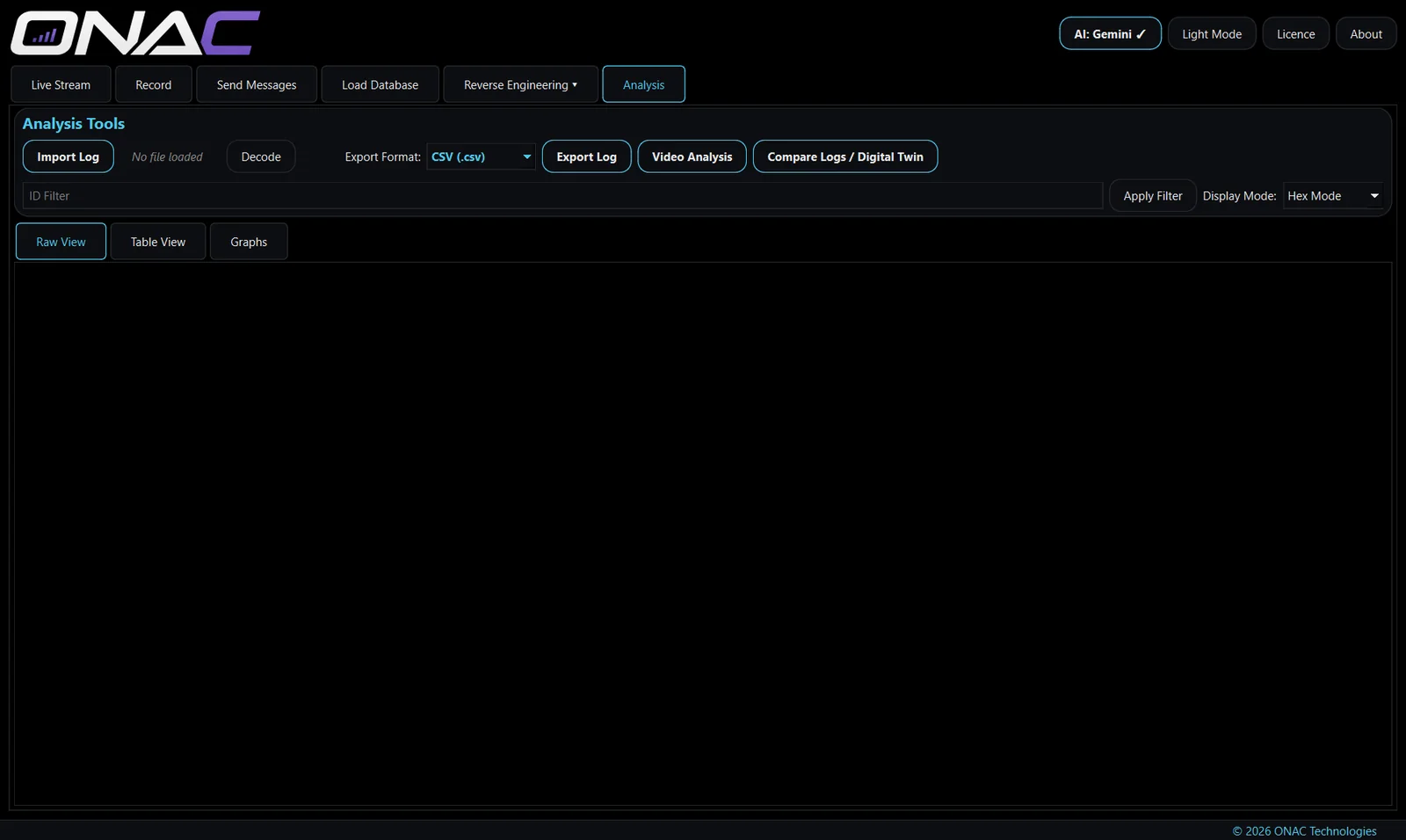
- Import logs from CSV or MF4 (including CANedge MF4 files) and decode them with your loaded databases.
- Export decoded data to CSV, MATLAB
.mat, MoTeC.ldor MDF.mf4— straight into the tools your team already uses. - Video analysis. Play recorded video in step with the data, so you can see what the vehicle was doing at any point.
- Compare Logs. Put two sessions side by side and find what's different — the fastest way to find the message behind a feature that's in one car and not another.
- Digital Twin builder. Pull out the IDs that only appear in one of two logs to build a model of a specific module.
Send Messages
Transmit your own frames onto the network — for bench testing modules, verifying a decoded signal by driving it, or replaying a captured event.
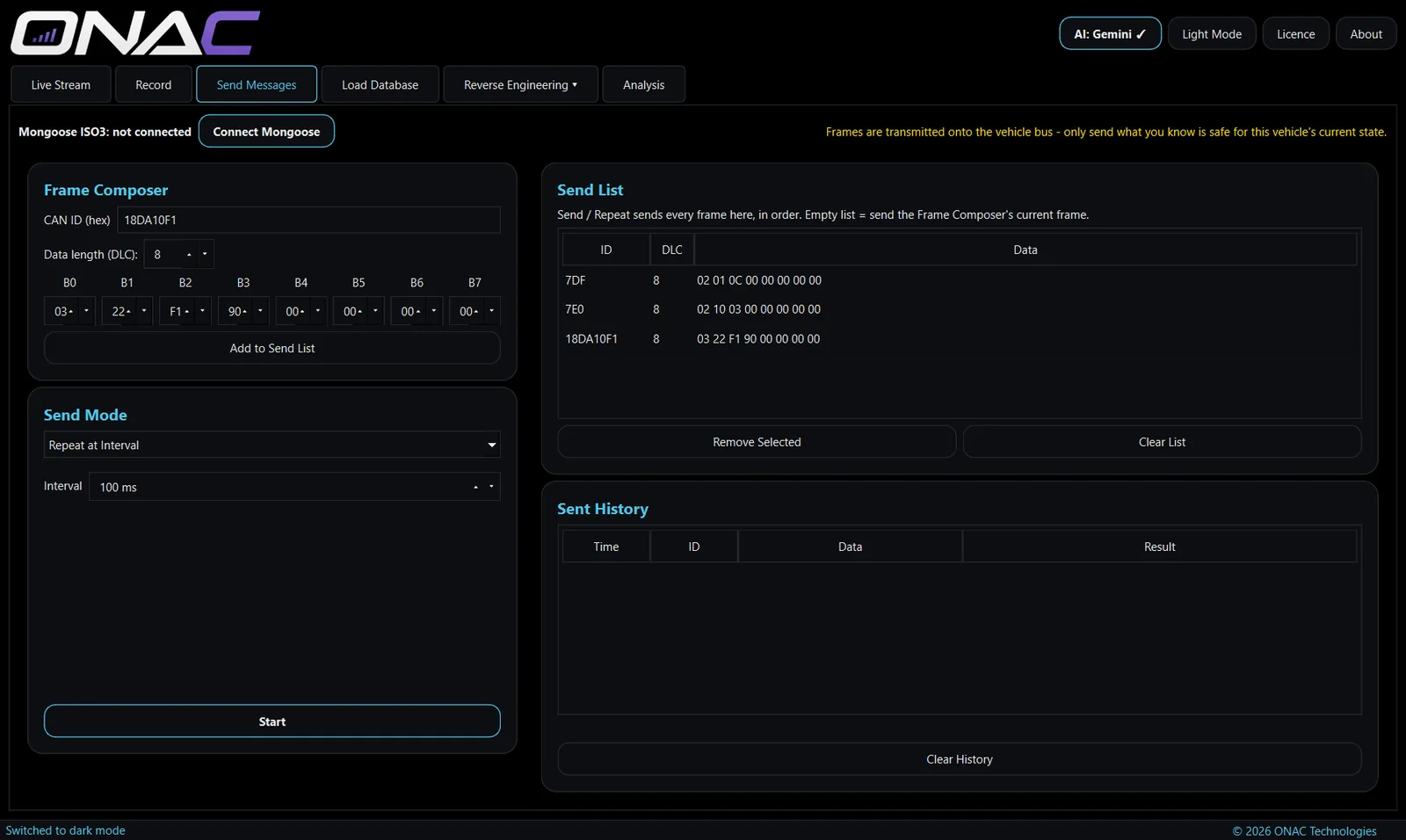
- Frame composer. Enter an ID and edit the data bytes. IDs above 7FF are sent as 29-bit extended IDs automatically.
- Send list. Build up a list of frames and send them once, repeat them at a set interval (10 ms upwards), or replay a recorded CSV log with its original timing.
- A history shows every frame sent and whether the interface confirmed it.
- Sends CAN through a Mongoose ISO3, sharing the same connection as Live Stream, and stops automatically if the interface disconnects.
Because transmitting can change how a vehicle behaves, Send Messages is only in Network Studio Pro, which is available to approved professionals. Request Pro access.
Activation and your licence
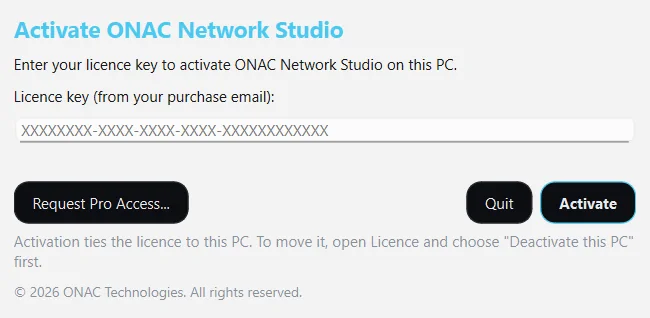
- Paste your licence key into the activation window the first time the app opens.
- Each key works on up to two PCs. To move it, choose Licence → Deactivate this PC first.
- The app checks in with our licence service occasionally, and keeps working offline for up to 14 days between checks.
- Manage or cancel your subscription any time from the Licence window.